![HQ1.png]](https://knowledgebase.mmgfusion.com/hs-fs/hubfs/HQ1.png?height=40&name=HQ1.png)
You can set up an unlimited number of phone numbers in MMG for your dental practice. Depending on the plan that you have with MMG, you will have to pay for the cost of that phone number and potentially the cost of call forwarding. These costs will be different depending on the plan that you have subscribed to. Please contact your account manager to get the details of the expenses.
Within the MMG-Fusion dashboard, select the location that you want to get a phone number for. Then from the menu select:
Settings → Phone → Manage Phone Numbers
Keep in mind that you will need to have permissions to access this feature. The “admin” system role has that permission, but your custom roles may also provide the ability for different roles within your organization to be able to access this page and make changes.
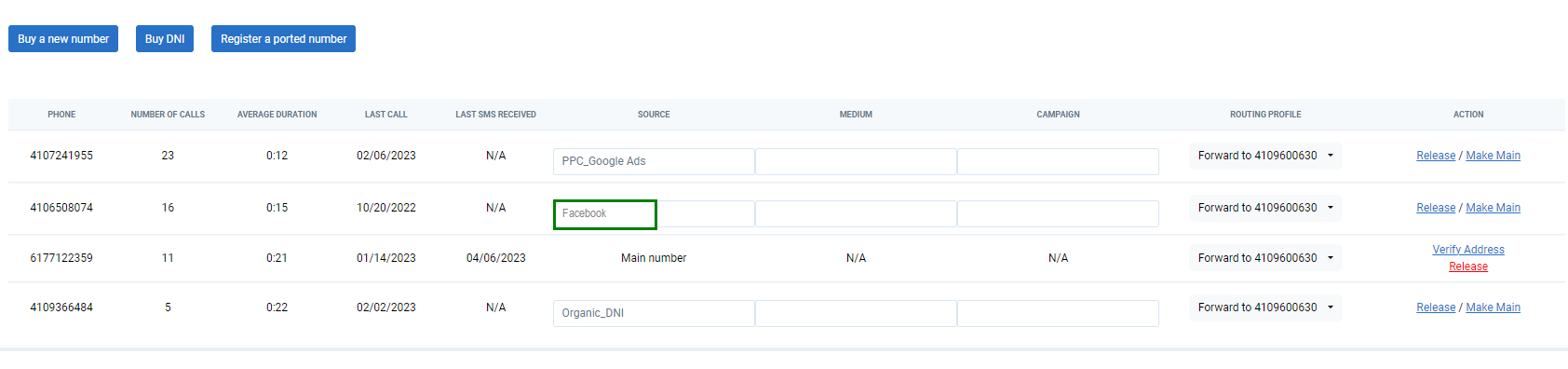
Depending on the services that your organization has subscribed to, your screen may look different.
When you want to get a new phone number for a source, click on “Buy a new number”. That will show you the following interface:
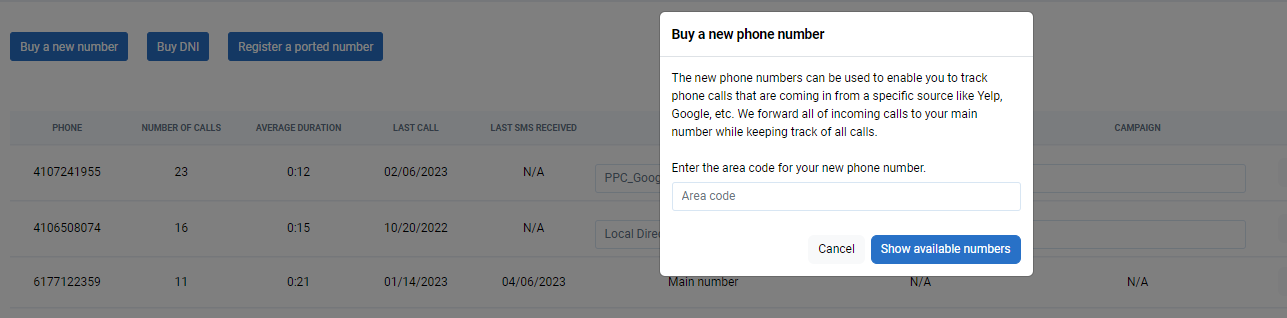
You can now enter the area code that you would like the new phone number to be in and the system will tell you if there are any phone numbers available in that area code.
If the phone number is available, you can purchase that number. We recommend that, at minimum you should have the following numbers to track your major channels:
- Yelp
- Google Listing
- Google Ads - Website
- Google Ads - Ads
- Facebook Listing
You should also have one phone number for any other major listing that you may have in your area. For example, in some areas Zocdoc is used. If that’s the case for your office, you would also need a phone number for Zocdoc; and the same goes for any other major channel that you are using.
You also need a phone number for each of your non-digital channels. For example, if you have a print ad in a newspaper, you will need a phone number for it so that you can track the effectiveness of that campaign.
Once you acquire the phone number, the number will appear on the list. Make sure that you enter the name of the source in the “Source” column for that number. If that channel has more than just the source, you should use the “Medium” field to enter the details. For example, for “Google Ads - Website” and “Google Ads - Ads”, the source is “Google Ads” for both, and “Ads” and “Website” set as the Medium.
Once you set up a number, you can decide how MMG should handle the incoming calls to that number through a “routing profile”. A routing profile can be assigned to any proxy number and can be used to route the incoming phone calls to that number in a certain way.
First you will need to set up an extension.
Settings → Phone → Extension
Enter the phone number you wish the tracking number to forward to under both the extension and the forward to field. Select "Forward" for the type, and save.

You can manage the routing profiles by going to.
Settings → Phone → Call Routing
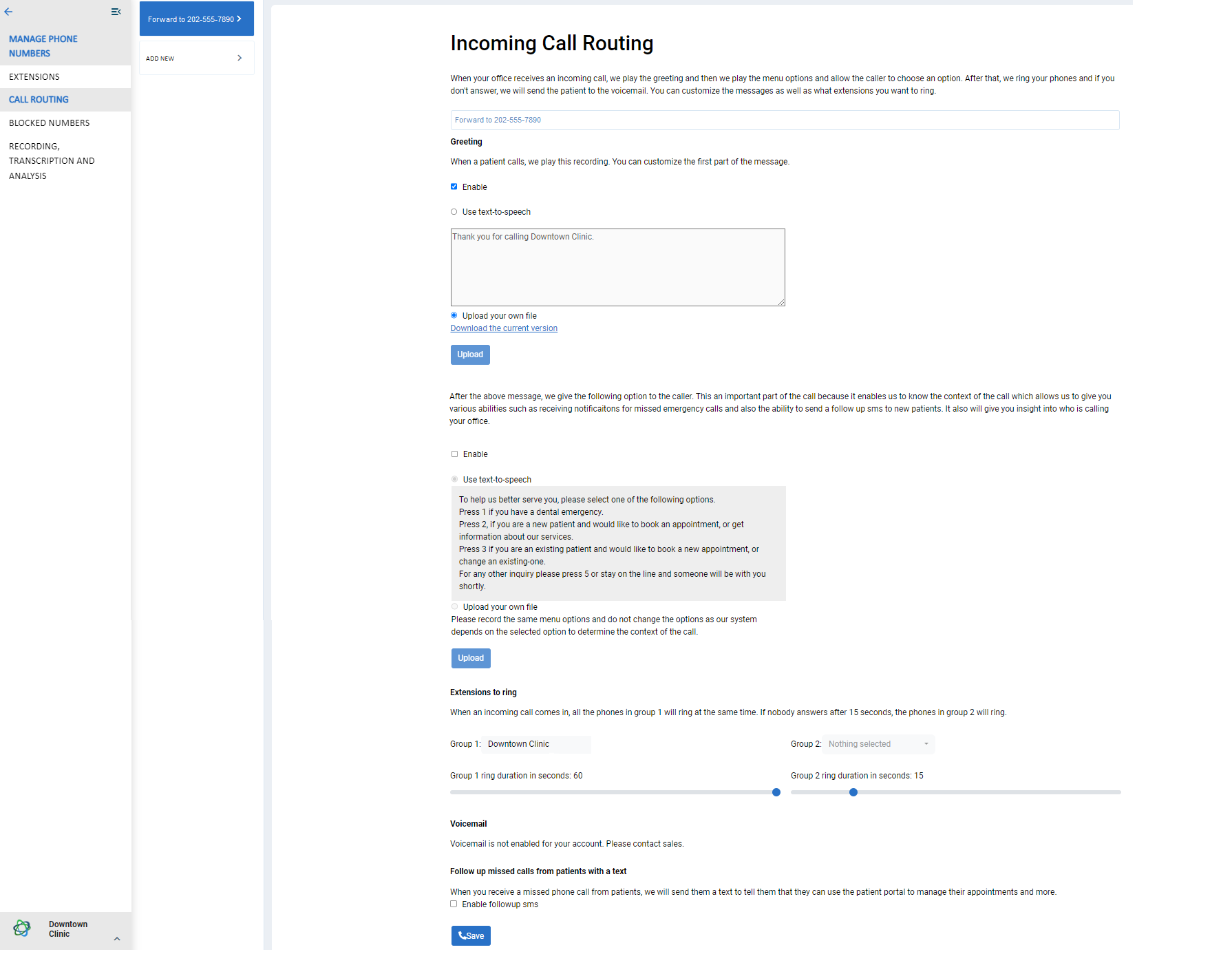
In general, a routing profile consists of multiple sections:
- Greeting: This is the greeting that is read to the caller when the call is answered by the system. You can use Text-to-Speech or upload your own mp3 file or disable the greeting.
- Menu option: This menu is used to collect more information about the intent of the caller. It doesn’t change the flow of the call, but it allows MMG to know why the caller called. This helps with call analytics by giving context to the call. This can also be disabled.
- Once the menu is read to the user, the call will be forwarded to all the extensions in “Group 1”. Extensions can be real phone numbers (like cell numbers), or the main number of the office or, in case that MMG Fusion is providing the phone service, it can be any extension within the office.
- The extensions that are in group 1 will ring for 15 seconds and if no one answers the call will be forwarded to all the extensions in group 2 (you may extend to 60 sec). They will then be ringing for 15 seconds and if no answer is received the call will be forwarded to the voicemail (which is integrated into the comm-hub).
- Depending on the services that the office has subscribed to, some of these features may not be available and the cost of them may vary depending on the package that the office has subscribed to.
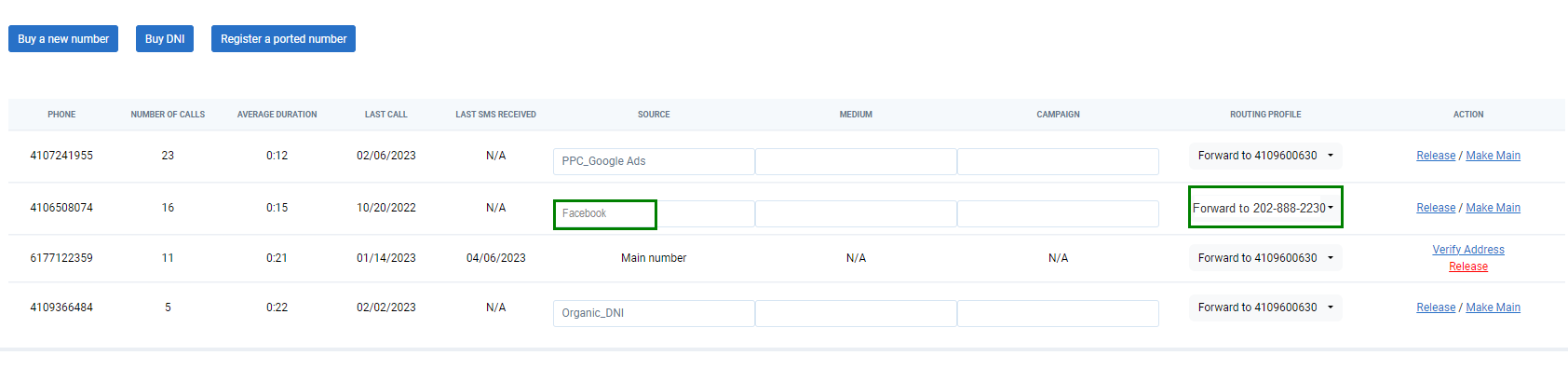
If this is the first routing profile you set up, or there is only one, it will automatically be assigned to the tracking number you created under "Manage Phone Numbers". If you have multiple routing profiles, make sure to go back to "Manage Phone Numbers" and assign the correct routing profile to the tracking numbers.
Settings → Phone → Manage Phone Numbers
Create a Marketing Tracker Campaign
Whether you have acquired a tracking number, DNI, or connected a form source, a tracking campaign will need to be created and associated with that channel in the MMG Fusion Portal.
The fundamental unit of Marketing Tracker (MT) is a campaign. Here is how MT works:
- A MT campaign must be created:
- If this campaign is going to be used for tracking phone leads, then you should assign a phone number (or a DNI) to the campaign.
- Whenever is lead is created for that campaign, MMG will track the conversion of that lead over time:
- For call lead: Whenever an incoming call is coming on a number that is assigned to a MT campaign, a lead is created and will be tracked over time.
- For form lead: You will have to either use the MMG script or other methods to send MMG the information about the lead whenever you collect it so that MMG can track the lead (more on this later).
The MT campaign settings is available under:
Settings → Marketing Tracker → Campaign
As you can see if an MMG phone number does not have a corresponding MT campaign, the conversions for the calls to that number won’t be tracked.
That means that you either must create a campaign for all the phone numbers that you want tracked OR enable the option of “Auto create campaigns on incoming calls” in the MT settings page.
Tip: We recommend to always check your tracking number by calling it, before it goes live. Making a test call, will automatically create the campaign if you have checked the “Auto create campaigns on incoming calls” box.
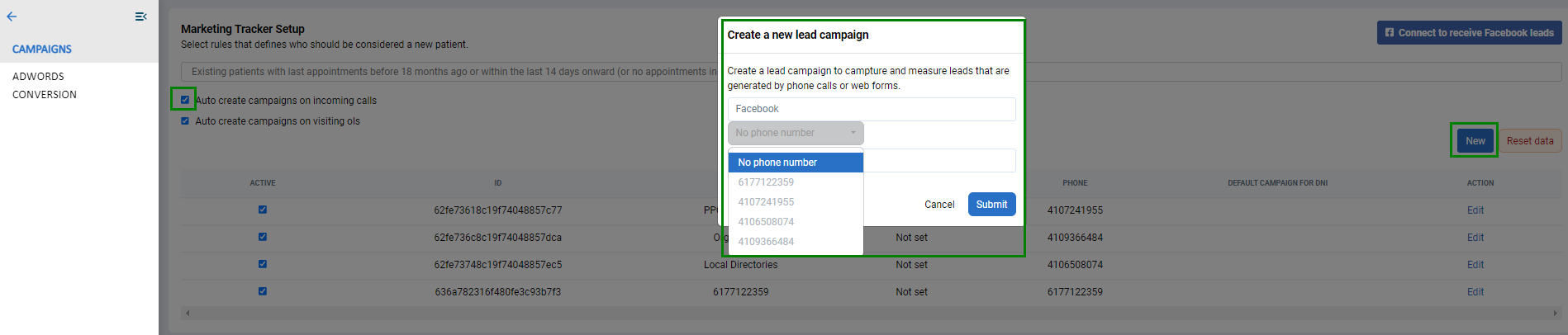
When you click “New” a window will pop up. Here you will enter the name of your campaign, then from the drop down select the corresponding tracking number. You will be able to enter an dollar amount allocated for the marketing budget of the campaign or leave blank.
Then click submit.
Once you create the MT campaign, you can see more information about the calls that includes:
- The number of potential new patients that called in (i.e. MT detects if a call is from an existing patient and discounts that)
- If the call converted into an appointment
- The revenue generated from each lead
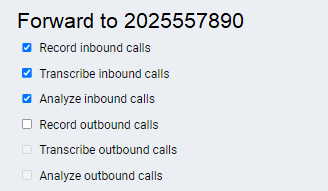
If Call analysis is part of your package and wish for any tracked call to be recorded and available for review, you will need to be enabled the feature for each desired extension created.
This can be completed by visiting: Settings → Phone → Record, Transcribe and Analyze (Enable all three for incoming calls)
Tip: If you prefer, you can always request the number from our support team, and we will do all of the set up for you!